PaperCut Hive First-Time Login Guide
The Office of Information Technology is using PaperCut Hive to deploy and manage printers across the SC4 campus. As part of this process, all employees will need to locate and sign in to the PaperCut Hive application on their computer for the first time.
SC4 utilizes Single Sign-On (SSO), allowing you to sign in using your SC4 email address and current password. Once you have successfully logged in, PaperCut Hive will automatically begin deploying the printers assigned to you. Printer installation typically takes 6–10 minutes to complete, and no additional action is required.
Please follow the steps below to complete your initial sign-in and printer setup. If you experience any issues during the process or your printers do not appear after 10 minutes, please contact the SC4 Helpdesk at (810) 989-5615 for assistance.
Step 1: Open the PaperCut Hive App
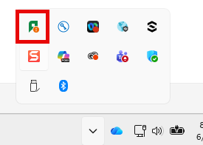
- Locate the PaperCut icon in your Windows system tray (bottom-right corner of your screen).
- If you do not see it immediately, click the Show Hidden Icons (^) button.
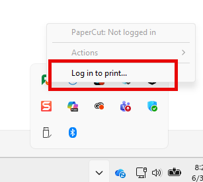
- Right-click the PaperCut icon.
- Select Log in to print…
Step 2: Start the Login Process
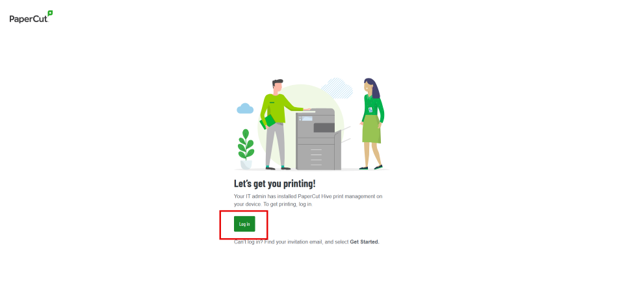
When the PaperCut login window opens, click Log in.
Step 3: Sign In with SC4 Credentials
PaperCut Hive uses SC4 Single Sign-On (SSO).
- Click Continue with SSO.
- Sign in using your SC4 email address and password when prompted.

Step 4: Wait for Printer Deployment
After successfully signing in:
- PaperCut Hive will automatically register your computer.
- Your assigned printers will begin installing automatically.
- Printer deployment typically takes 6–10 minutes to complete.
You can continue working while the printers are being installed.
Need Help?
If your printers have not appeared after 10 minutes, please contact the SC4 Helpdesk for assistance.
Helpdesk
- Phone: 810-989-5615
- Email: helpdesk@sc4.edu
What Happens Next?
Once you are signed into PaperCut Hive, printer assignments and future printer updates will be managed automatically. In most cases, you will not need to manually install printers again.