SC4 WebEx Text Messaging
SC4 now offers a communication option for select users that allows sending and receiving text messages directly through the Webex application.
This tool allows you to communicate using your SC4 phone number without needing a personal device.
The instructions below outline the initial setup process. Once completed, you will be able to send and receive text messages from Webex on your SC4-provided computer, as well as from the Webex mobile app.
Important Notice
All communication sent and received through the Webex application is subject to the SC4 Acceptable Use Policy and federal FERPA regulations.
Text messages should not include personally identifiable information (PII) or restricted student, employee, or institutional data, similar to email guidelines.
For more information, please review the SC4 Acceptable Use Policy: https://sc4.edu/aup
Initial Setup Instructions
Open the Webex application on your SC4 device.
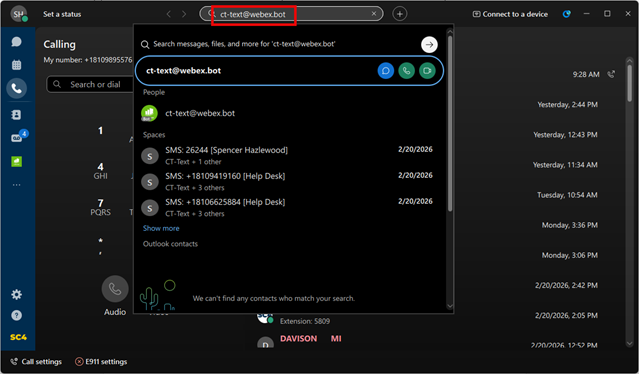
In the search bar, type ct-text@webex.bot and press Enter.
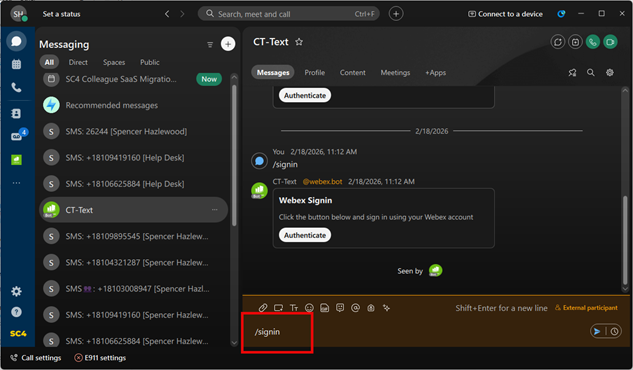
In the chat window, type /signin and press Enter.
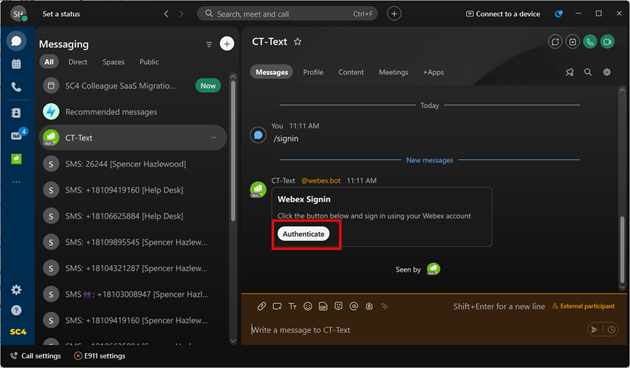
When prompted by the CT-Text bot, click Authenticate.
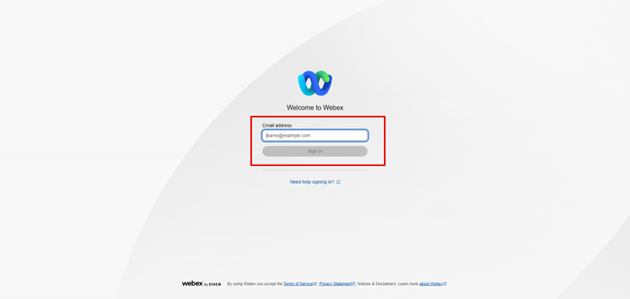
A browser window will open. Log in using your full SC4 email address and password.
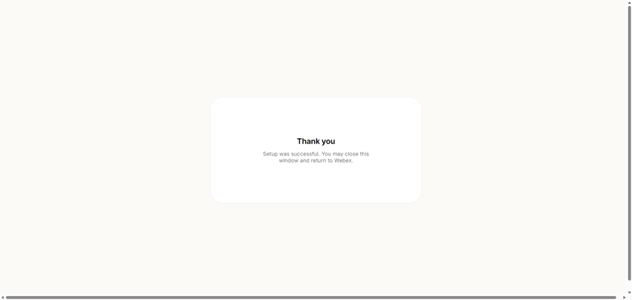
After successful authentication, return to the Webex application.
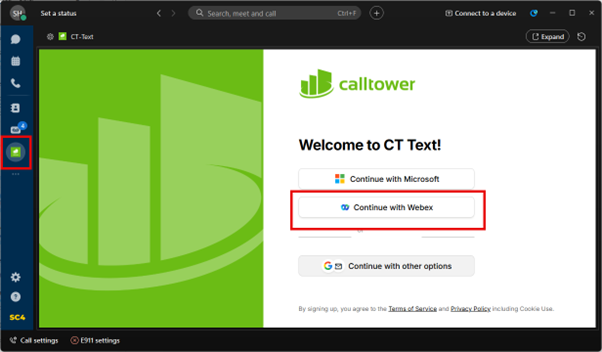
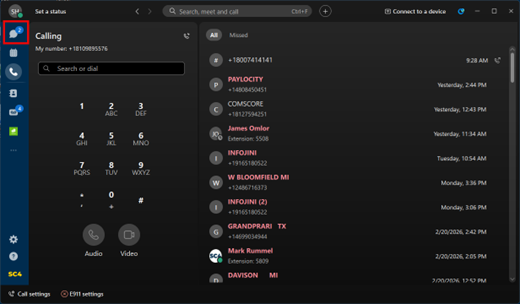
Select the CT-Text app from the left-hand navigation panel.
Click Continue with Webex.
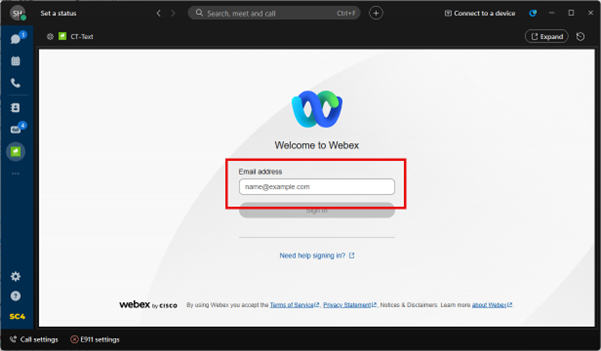
If prompted, sign in again using your SC4 email and password.
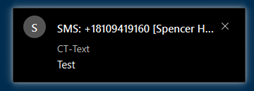
Once setup is complete, incoming messages will appear as desktop notifications and within the Webex application.
Sending a Text Message
Open the CT-Text app within Webex.
Click the green plus (+) button at the top of the chat window.
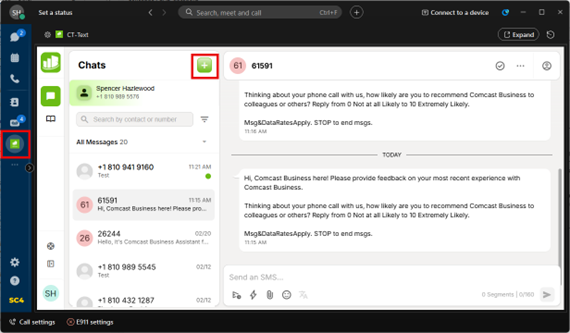
Enter the recipient’s phone number in the To: field.
Type your message and send.
Sending to Multiple Recipients
You may include up to 50 recipients in a single message.
Broadcast
- Replies are sent back to you individually.
- Recipients do not see each other’s responses.
Group Chat
- Replies are visible to all recipients.
- All participants are notified of responses.
Additional Notes
Message history is retained within Webex, similar to standard messaging platforms. Notifications will appear both as desktop alerts and within the application interface.